When playing a premium AAA game like *Call of Duty*, fans expect top-notch performance. However, *Black Ops 6* can sometimes appear grainy and blurry, which can detract from the immersive experience and make it challenging to spot targets. If you're noticing these issues in *Call of Duty: Black Ops 6*, here’s how to address them.
Table of contents
Why Does Black Ops 6 Look Grainy & Blurry? AnsweredHow to Turn Off Blur in Call of Duty: Black Ops 6How to Reduce Grain and Improve Clarity in Black Ops 6How to Improve Black Ops 6 Image Details and Textures
Why Does Black Ops 6 Look Grainy & Blurry? Answered
If Black Ops 6 looks grainy and blurry on your setup, even after adjusting your hardware settings to ensure your console or PC outputs at the highest resolution your monitor supports, it's likely due to specific in-game settings. Even if you've tweaked these settings before, updates can sometimes reset them to default values. The key settings affecting image quality are located in the graphics settings under the Display, Quality, and View tabs. The Quality tab, in particular, contains the crucial options for enhancing how Black Ops 6 looks.
How to Turn Off Blur in Call of Duty: Black Ops 6
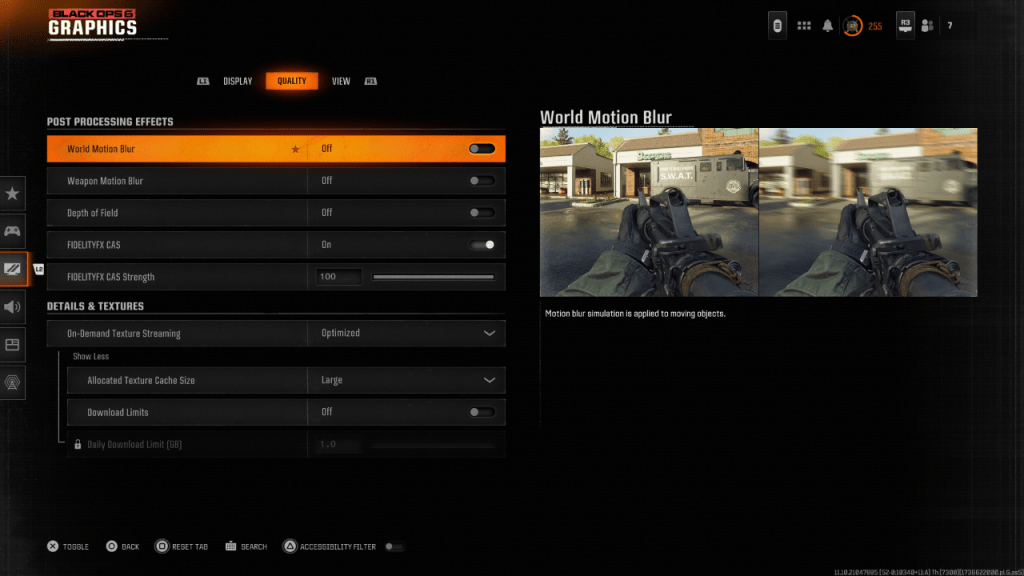 For a more cinematic feel, games often include effects like Motion Blur and Depth of Field to mimic camera lens effects, enhancing the film-like quality. While these can be immersive in narrative-driven games, they can introduce unwanted blur in fast-paced competitive games like Call of Duty: Black Ops 6, making it harder to focus on targets.
Here’s how to disable Motion Blur and Depth of Field:
- Navigate to the graphics settings and select the Quality tab.
- Scroll down to Post Processing Effects.
- Switch World Motion Blur to Off.
- Switch Weapon Motion Blur to Off.
- Switch Depth of Field to Off.
How to Reduce Grain and Improve Clarity in Black Ops 6
After adjusting the above settings, if Black Ops 6 still looks off, your gamma and brightness settings might need calibration. Go to the Display tab in the Black Ops 6 Graphics settings, click on Gamma/Brightness, and adjust the slider until the Call of Duty logo in the middle panel is just barely visible. A setting of 50 usually works well, but you might need to fine-tune it based on your display.
Next, in the Quality tab, ensure that FIDELITYFX CAS is turned On. This activates AMD FidelityFX Contrast Adaptive Sharpening, enhancing scene sharpness. The default setting of 50/100 is recommended, but you can increase it to 100 for even sharper images if needed. If these adjustments don't resolve the issue, On-Demand Texture Streaming might be the culprit.
How to Improve Black Ops 6 Image Details and Textures
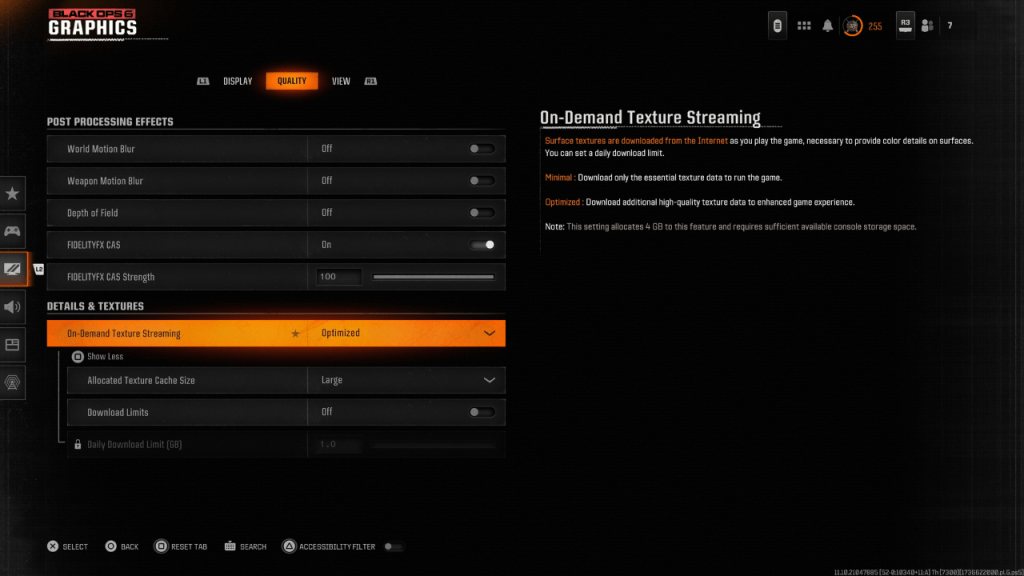 To manage the large file sizes of modern Call of Duty games, Black Ops 6 uses On-Demand Texture Streaming. This system downloads textures as you play, reducing the storage space needed but potentially affecting image quality.
For optimal image quality, go to the Details & Textures settings in the Quality tab of the Black Ops 6 graphics settings. Set On-Demand Texture Streaming to Optimized to download high-quality texture data. Click "Show More" to access additional options, and set the Allocated Texture Cache Size to Large. This will use more storage space but allow for more textures to be downloaded at once. If your internet service provider doesn't charge extra for data usage, switch Download Limits to Off to ensure Black Ops 6 can download as many high-resolution textures as needed for the best graphical performance.
By following these steps, you can significantly improve the visual quality of Call of Duty: Black Ops 6, making it look sharper and more detailed.